User Guide
Everything you need to budget with Reckna. New to the envelope method? Start at the top. Already budgeting? Jump to the section you need.
Reckna Pro
Reckna is free for single-currency, on-device budgeting, with no limit on accounts or transactions. Reckna Pro unlocks multiple currencies with automatic conversion and private iCloud sync. Pro features are marked below.
Getting started
The first time you open Reckna, a short setup helps you:
- Create your first account — give it a name (e.g. Current) and its opening balance. This is where transactions live.
- Pick a few starter envelopes — categories like Groceries, Rent, or Transport. You can add, rename, or delete these any time.
Nothing is saved until the final step, so you can skip setup and start from an empty slate if you prefer. There's no account to create and no sign-in — the app is ready to use immediately, online or off.
The envelope method in 30 seconds
Reckna uses zero-based, envelope-style budgeting: every month, you give the money you actually have a job by assigning it to envelopes (categories). You only budget money you hold — not money you expect.
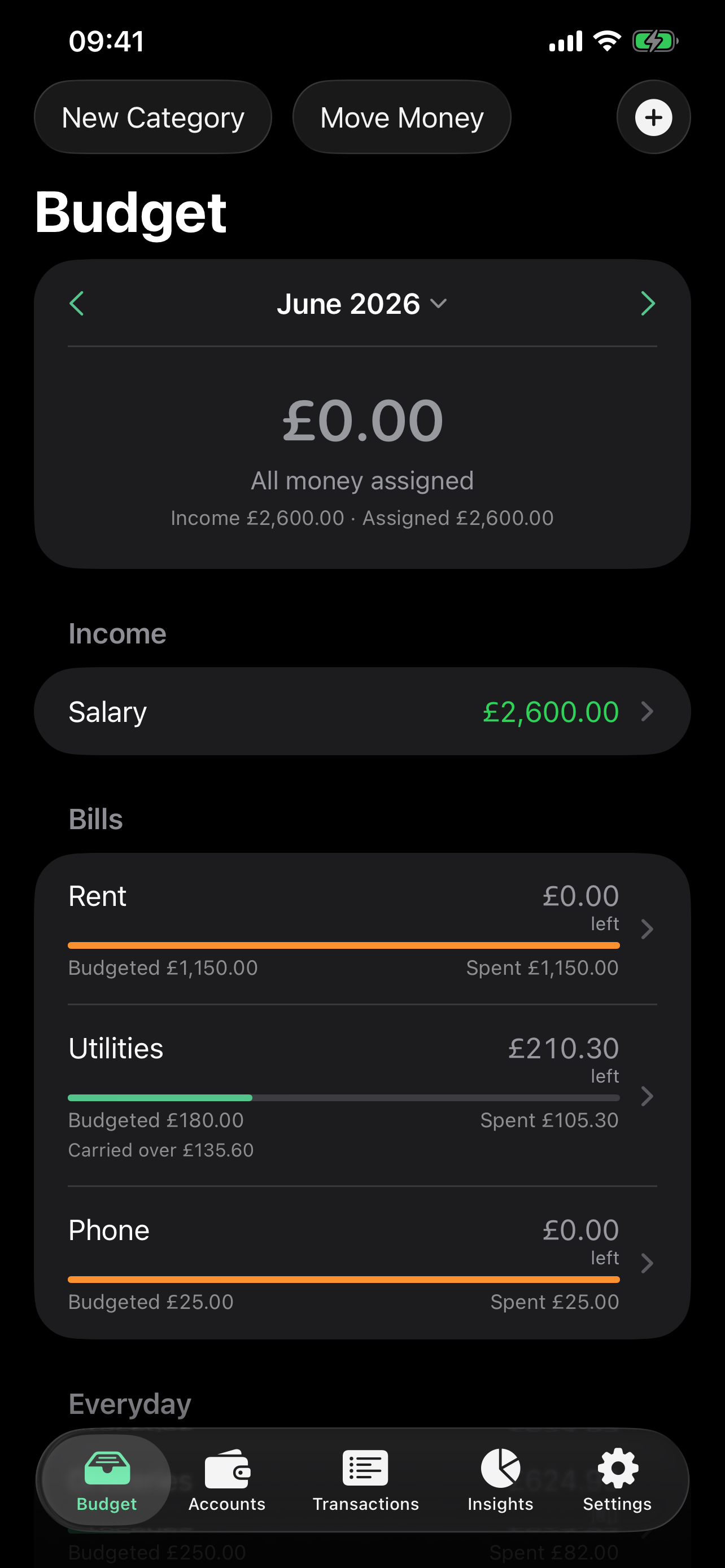
- Ready to assign at the top of the Budget tab shows what's left to hand out.
- Assign until it reads All money assigned. If you go past your income it warns Over-assigned.
- As you spend, each envelope shows what's left.
- Unspent balances roll forward into next month, and any unassigned income carries over too — so nothing falls through the cracks.
Adding transactions
Tap + to log income or an expense. Entry is built to be fast:
- Till-style amount entry — type on the number pad and the amount formats as you go. No "Done" bar; it dismisses when you move on.
- Learning payee suggestions — Reckna remembers which category you used for a payee and suggests it next time. Correct it once and it learns.
- Quick chips — one-tap buttons for your most-used categories.
- Create as you go — a missing category or account can be made right from the picker, without leaving the form.
- Remembered account — the form preselects the account you used last.
Splitting a purchase across envelopes
One receipt, several categories? Tap Split across categories and add a line per category. A running footer shows what's left to assign against the total, and Save unlocks once the lines add up. The transaction stays a single movement on your account — only the budgeting is split. Choose Use a single category to collapse it back.
Budgeting with envelopes
The Budget tab is your month. Each envelope shows what's assigned, what's spent, and what's left (or overspent), with a thin capacity bar that shades from green through orange to red as the envelope fills — so a scroll of the budget reads as health at a glance. Tap an envelope to see its transactions for the month and a summary of how the balance came about (carried over, budgeted, spent); Edit from there to rename it or change its budget and goal.
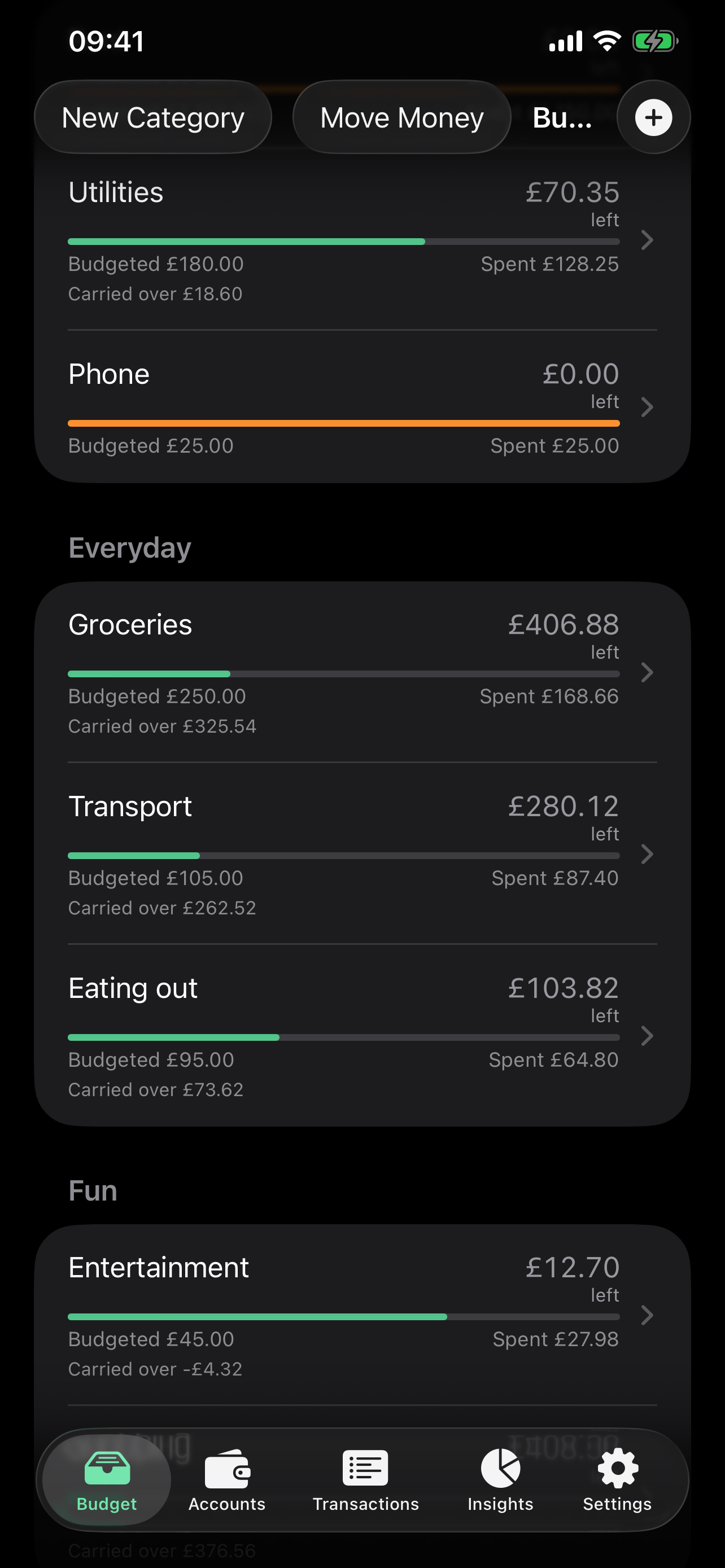
- Navigate months with the stepper — past or future — or tap the month title to jump straight to any month. You can edit any displayed month's allocation, to fix a past month or pre-fund ahead.
- Fund a shortfall — swipe an envelope and tap Fund to assign exactly what it needs (its goal gap, or enough to clear an overspend) straight from Ready to assign.
- Move money between envelopes — cover a Groceries overspend from Dining in a tap. This re-slices the month without changing your total assigned.
- Income is listed separately, showing what arrived this month.
Funding goals
Give any spending envelope a target:
- Monthly — a flat amount, e.g. £200/mo.
- By date — a total by a deadline, e.g. £500 by December (a sinking fund). Reckna works out what to set aside each month.
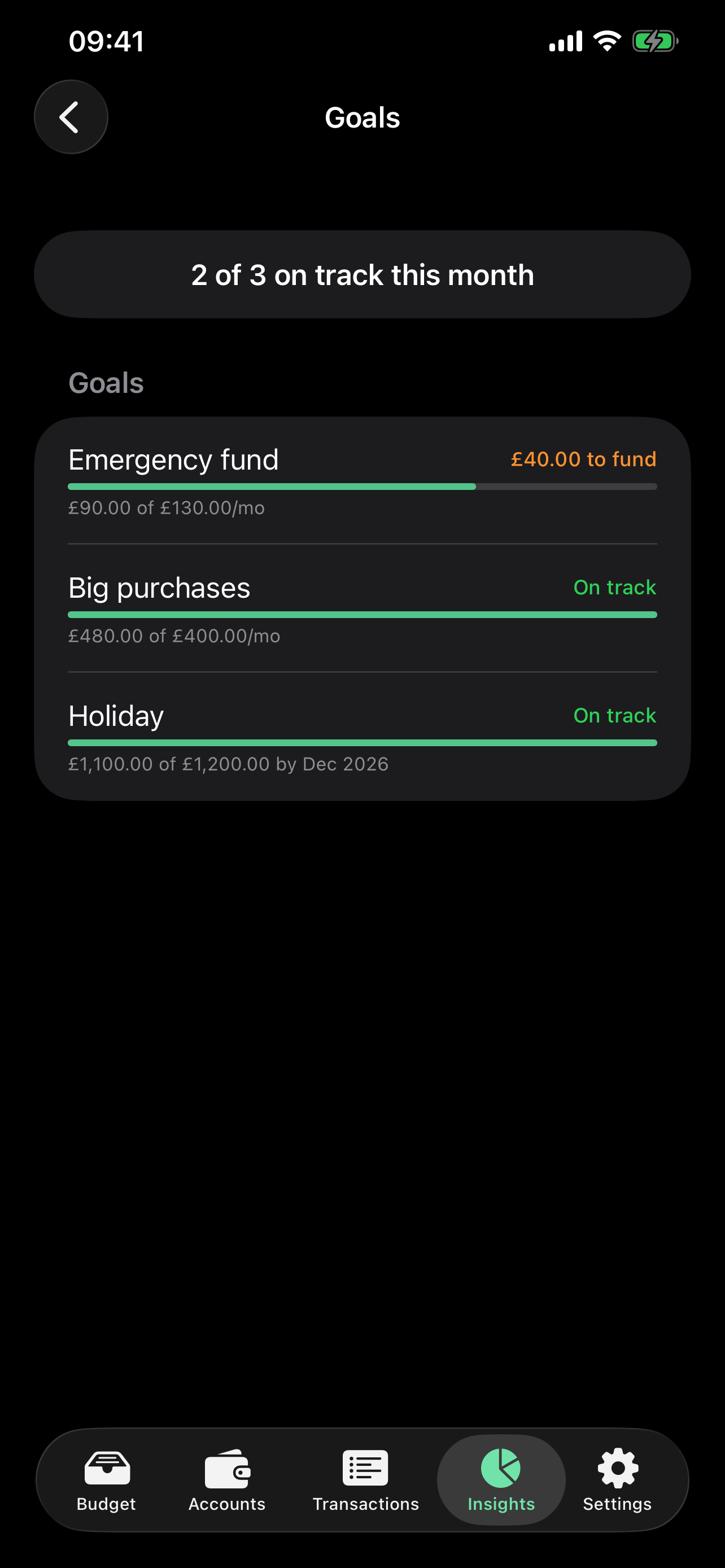
The envelope shows progress with a colour cue — behind, on track, or met — and the Goal adherence report (in Insights) gives you a report card across all of them. Goals are free.
Accounts and transfers
The Accounts tab lists every account with its balance, topped by a net-worth-over-time chart across all accounts.
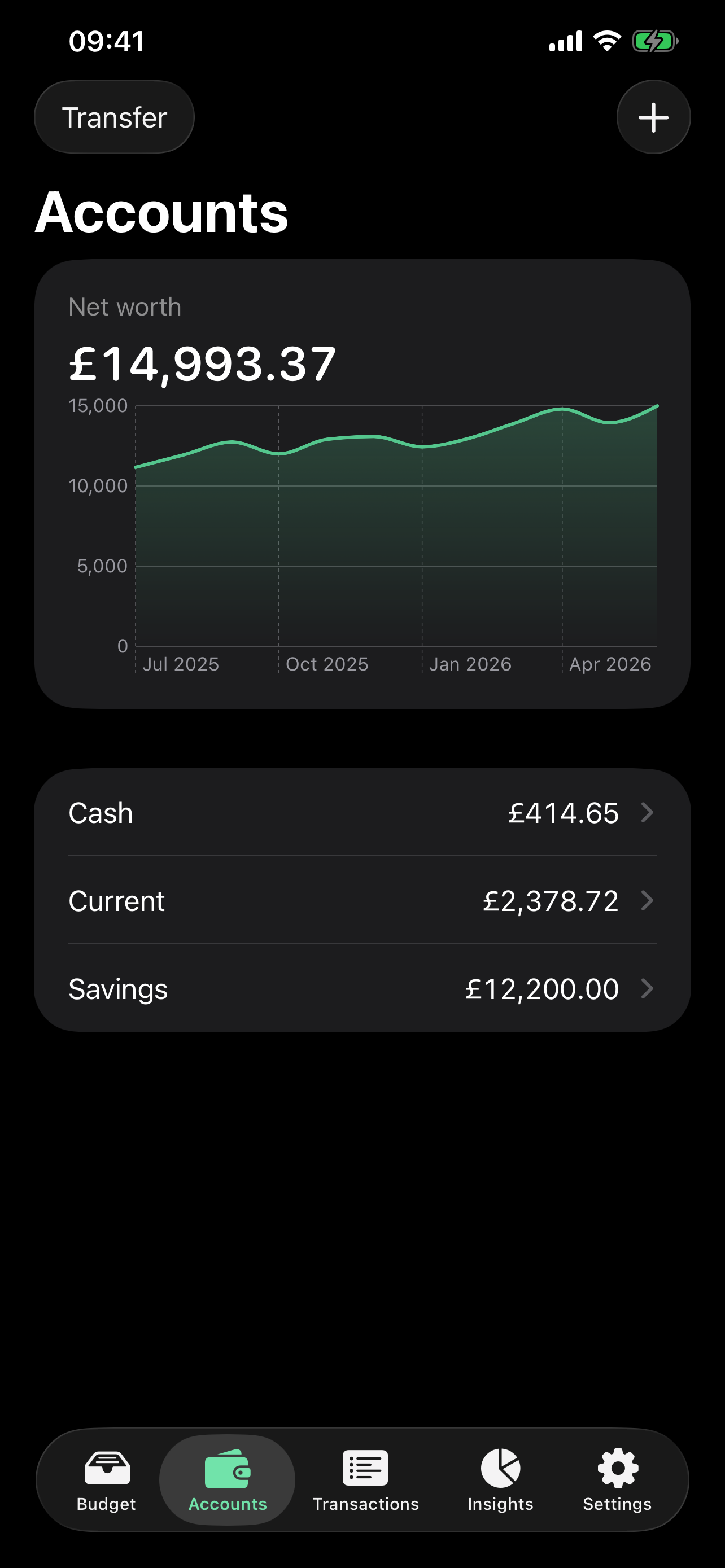
- Tap an account for its ledger; edit or delete from there.
- Transfer between accounts from the toolbar. A transfer is two linked legs; it doesn't count as income or spending and leaves net worth unchanged. Delete either leg and its partner goes too.
Finding transactions
The Transactions tab lists every transaction across all your accounts, newest first and grouped by day (Today, Yesterday, then the date). Search by payee, category, note, or account name; tap a transaction to edit it.
To re-enter a recurring fare or coffee, swipe or long-press any transaction and choose Duplicate — or use the Duplicate button on the Edit screen. A copy opens pre-filled and dated today; tweak and save. (The same gesture works on any list — an account's ledger, a budget envelope, or a spending report.)
Insights
The Insights tab collects four on-device reports, each VoiceOver-labelled:
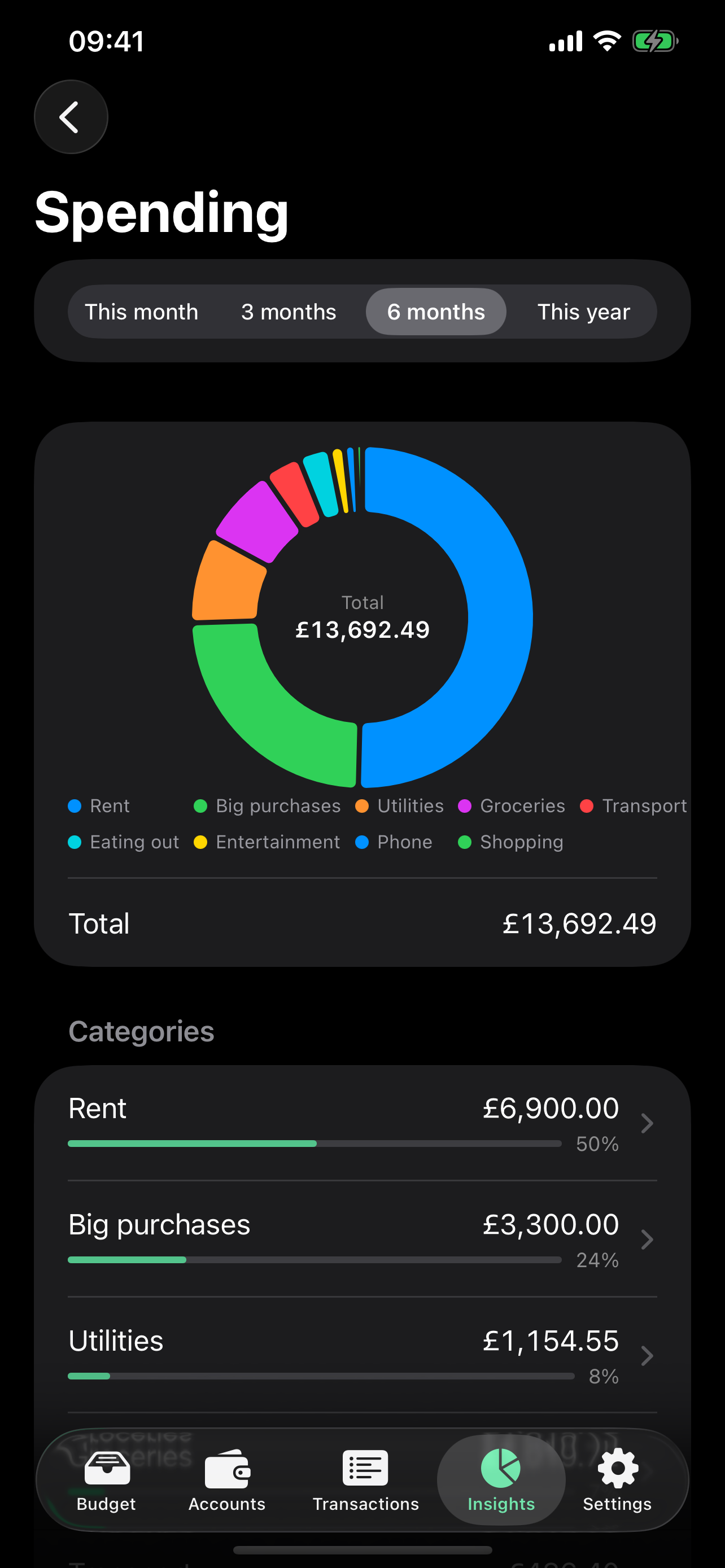
- Spending by category — a donut and ranked list for a window you choose (this month / 3 / 6 / this year). Tap a slice to drill into its transactions.
- Cash flow — money in vs. money out per month, with a net line.
- Spending trends — one category's monthly spend over time, with an average.
- Goal adherence — how many funding goals are on track this month.
Insights are part of the free app.
Multiple currencies (Reckna Pro)
By default Reckna is single-currency. With Reckna Pro you can hold accounts in different currencies and fold them together:
- Primary currency — your budget and net worth are shown in one budgeting currency, set in Settings. Foreign accounts are tracked in their own currency.
- Exchange rates — enter rates manually (1 USD = ___ GBP), or opt in to a daily on-device fetch from the European Central Bank / Bank of England. Rates are the only outbound network request, and they send none of your data.
- Rate history — fetch the last few months of dated rates in one tap, or enter dated rates by hand, so the net-worth-over-time chart converts foreign balances at the rate of the day rather than today's.
- Converted figures are estimates — your stored amounts never change currency. The rate is snapshotted when you enter a foreign transaction, so editing a rate later never rewrites past budgets.
- Cross-currency transfers — move money between accounts in different currencies, with a separate "amount received" field.
Quick capture
Log spending without opening the app:
- Home Screen widget — a Quick Add tile that jumps straight to a pre-filled Add form.
- Siri & Shortcuts — log an expense by voice or in a Shortcut; it goes to your default account.
- Spotlight — start an entry from search.
- Share sheet — share text or a web page and Reckna pulls out an amount and payee for you to confirm.
iCloud sync (Reckna Pro)
With Reckna Pro, turn on sync in Settings to keep your data in step across your iPhone and iPad. It uses your own private iCloud account — the data lives in your private CloudKit database, never on a server we run, and nowhere we can read it. Sync is entirely optional; the app is fully usable with it off.
Your data: export, backup, and restore
Your data is never locked in. From Settings → Your data:
- Export CSV — a documented, lossless transactions file that round-trips back in. Good for spreadsheets or moving between tools.
- Back up everything — a single
reckna-backup.jsonwith the whole picture: accounts, categories and goals, allocations, transactions, payees, and exchange rates. - Restore from backup — read a backup back in, choosing Replace (wipe and import) or Merge (add and update without duplicating).
This is also how you move to a new phone without Pro sync: back up on the old device, restore on the new one.
Importing from another app
Reckna imports the same CSV it exports. Most apps can export a CSV of
transactions; match the columns and import it from Settings. Reckna's own
exports carry an id column, so re-importing one updates rather than
duplicates; a file without that column only adds rows, so importing it
twice would duplicate them.
Locking the app
Turn on App lock in Settings to require Face ID, Touch ID, or your passcode to open Reckna. It re-locks whenever the app goes to the background.
iPhone and iPad
Reckna adapts to the device: a tab bar on iPhone, and a three-column layout (sidebar → list → detail) on iPad, so you see more at once on the larger screen.
Still stuck? See Support or email reckna@fortu.net.